
Shopyy Integration Guide
Enter the Merchant Admin Panel
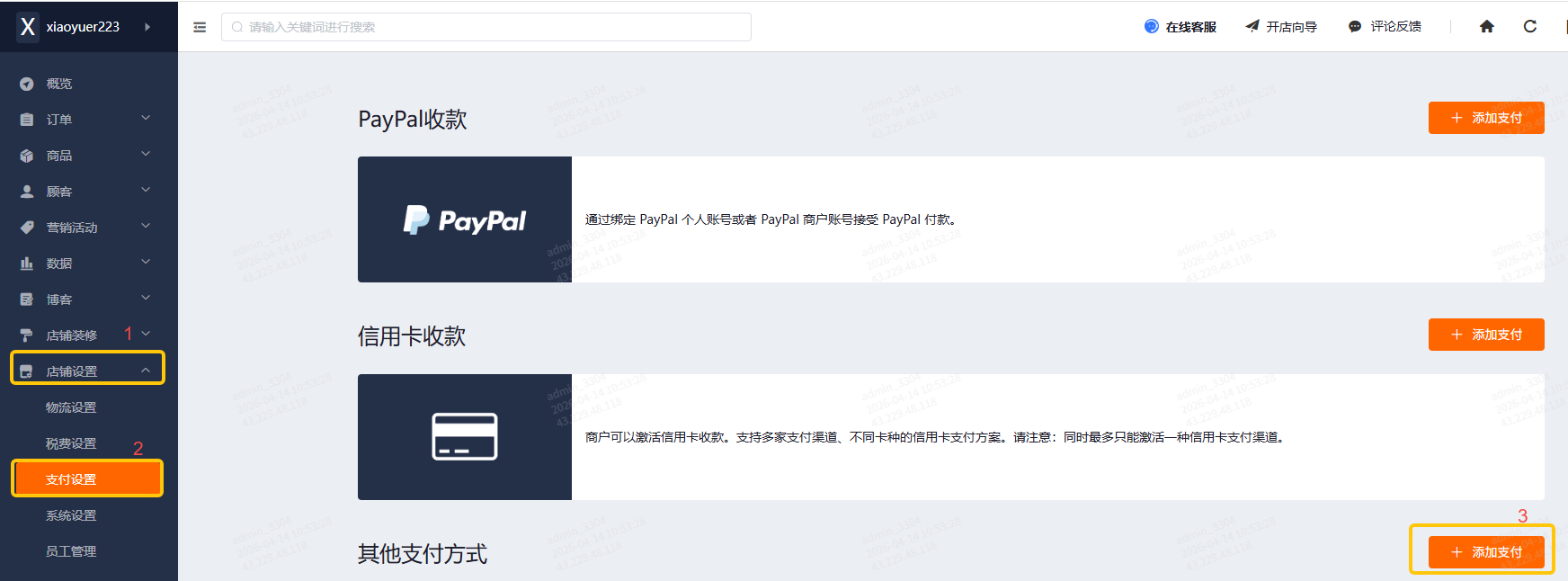
Section titled “Enter the Merchant Admin Panel”In the left sidebar, click Store Settings, go to Payment Settings, find Other Payment Methods and click the ”+ Add Payment” button.
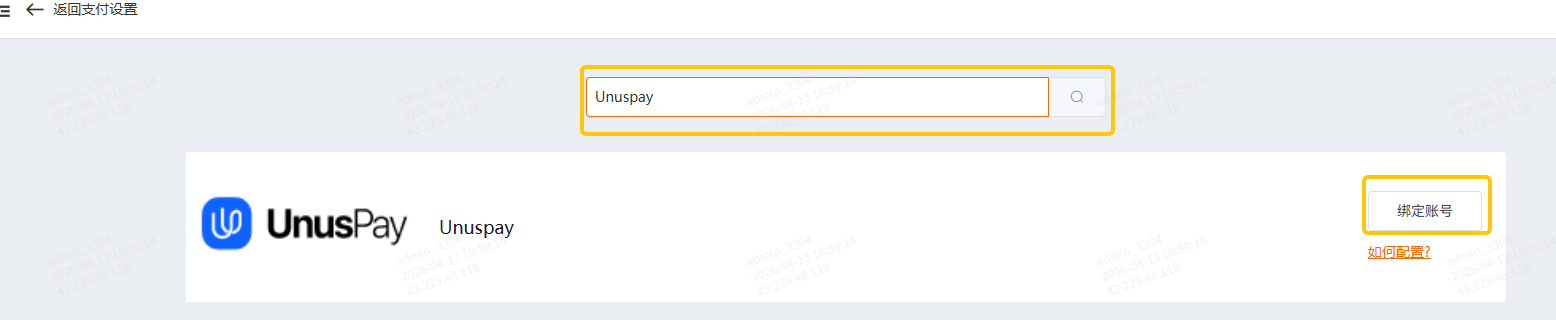
Type Unuspay in the search box. When it appears, click the Bind Payment button.
Register at Unuspay (skip if already registered)
Section titled “Register at Unuspay (skip if already registered)”To make filling in the configuration easier, register on the Unuspay platform first to get the required IDs and Keys.
You can register by email (Sign up) or Continue with Google. If you choose Sign up, verify your email address after registering.
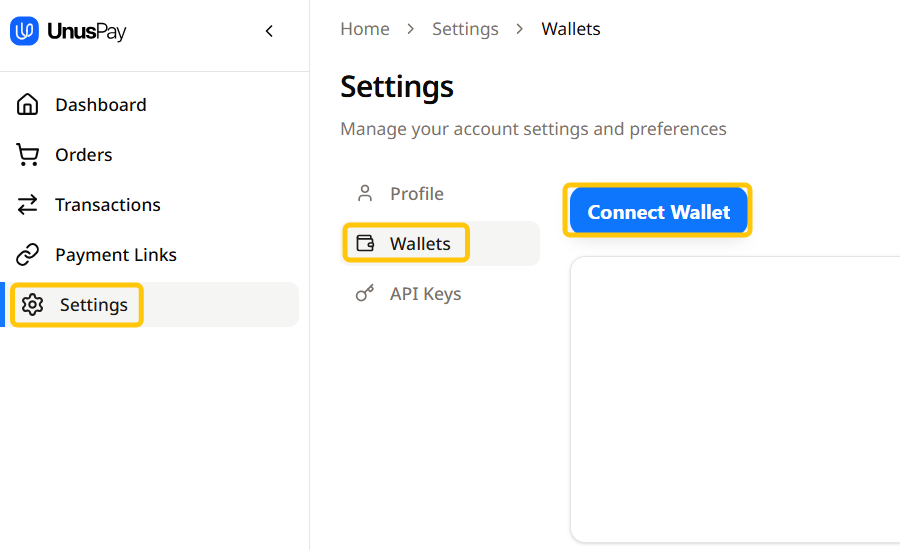
Once logged in, click Settings to set up your wallets, API keys, etc.:
Wallets
Section titled “Wallets”Go to the Wallets section, click Connect Wallet, select the wallet you want to use, and after it is identified, click Add Wallet for each chain.
Wallet Sets
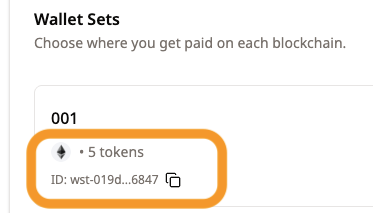
Section titled “Wallet Sets”A wallet set is required. It helps you manage your wallets. After creating a wallet set, you can find its ID as shown in the screenshot.
API Keys
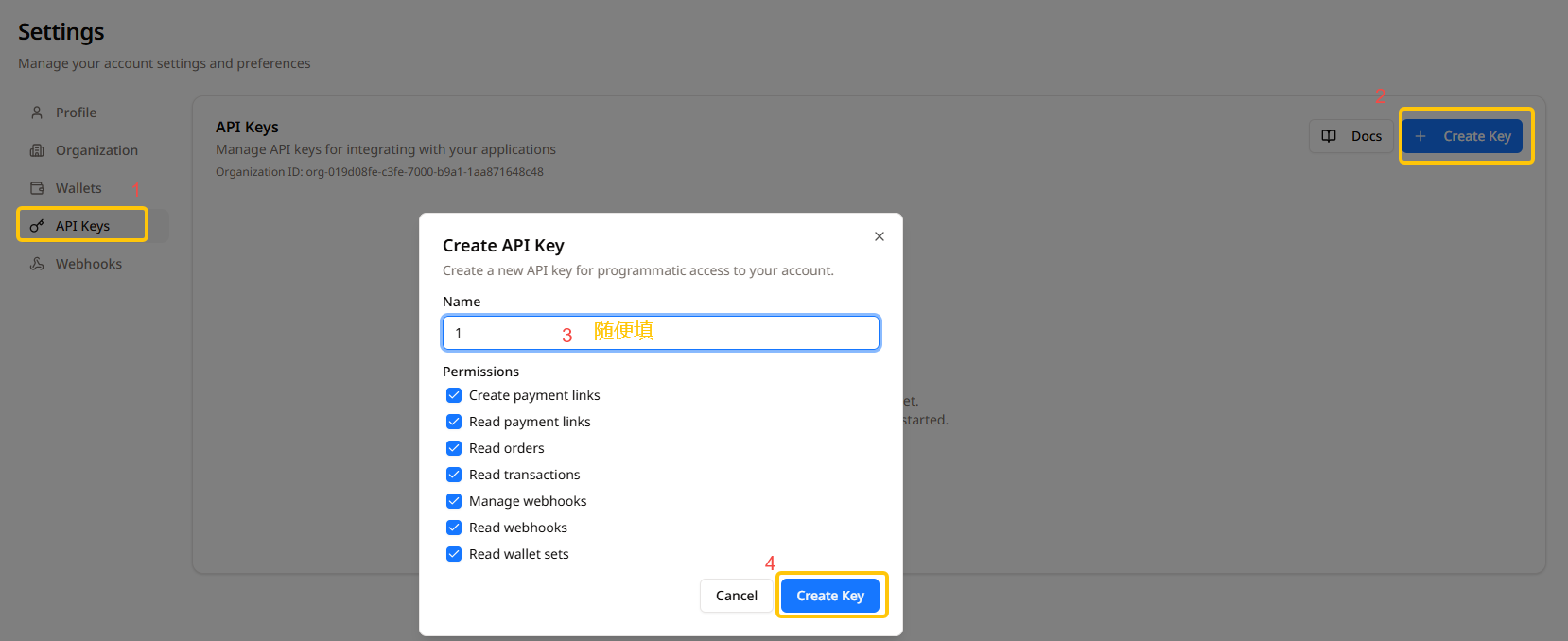
Section titled “API Keys”Go to the API Keys section, click + Create Key to generate a key. Copy the key immediately using the copy button. Save it securely.
Webhooks
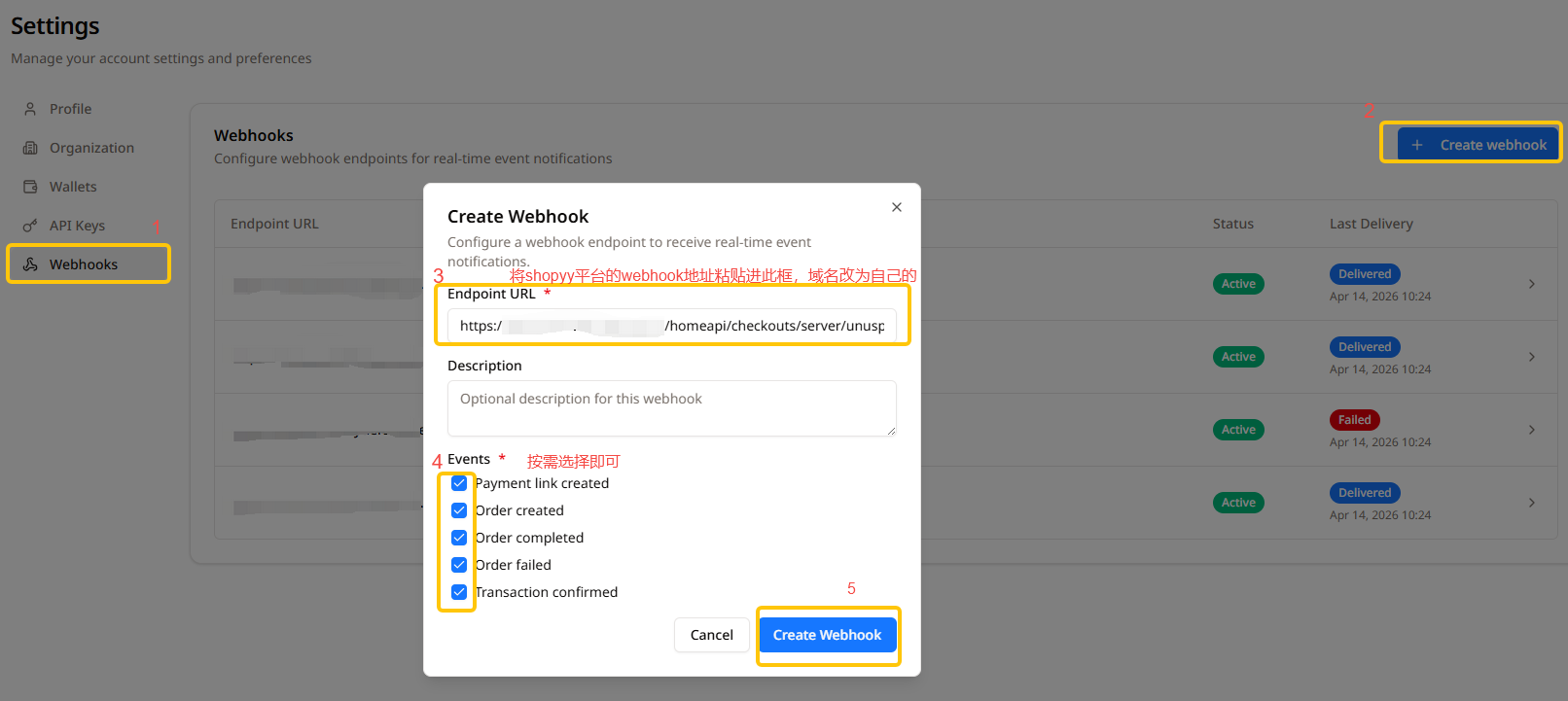
Section titled “Webhooks”Go to the Webhooks section, click + Create Webhook to generate a webhook secret. Copy the secret using the copy button. Save it securely.
Complete the Configuration in Shopyy
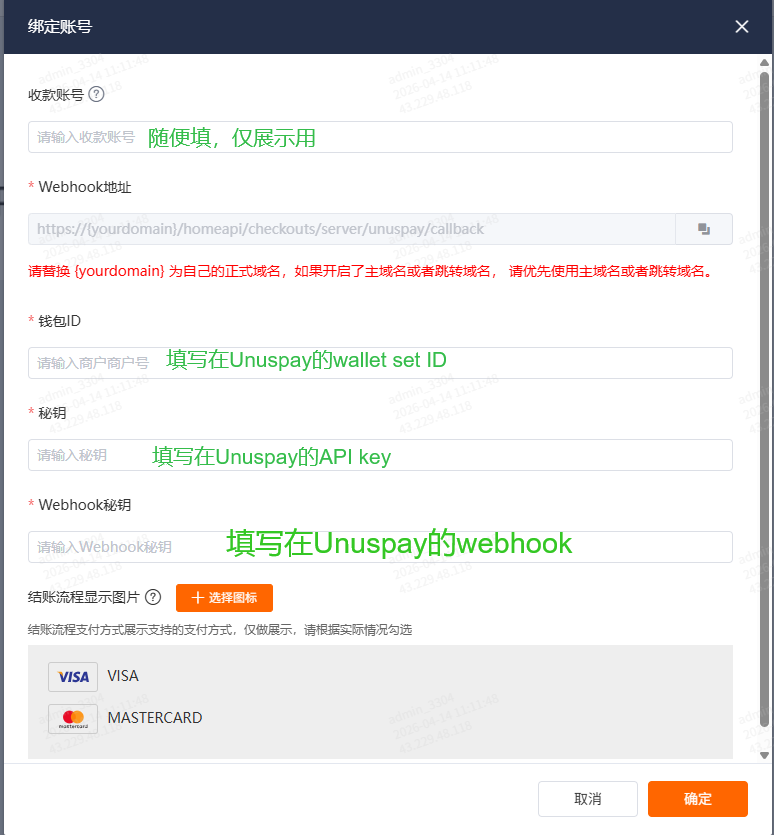
Section titled “Complete the Configuration in Shopyy”Fill in all the required information, then click the Confirm button to finish the setup.
Need Help?
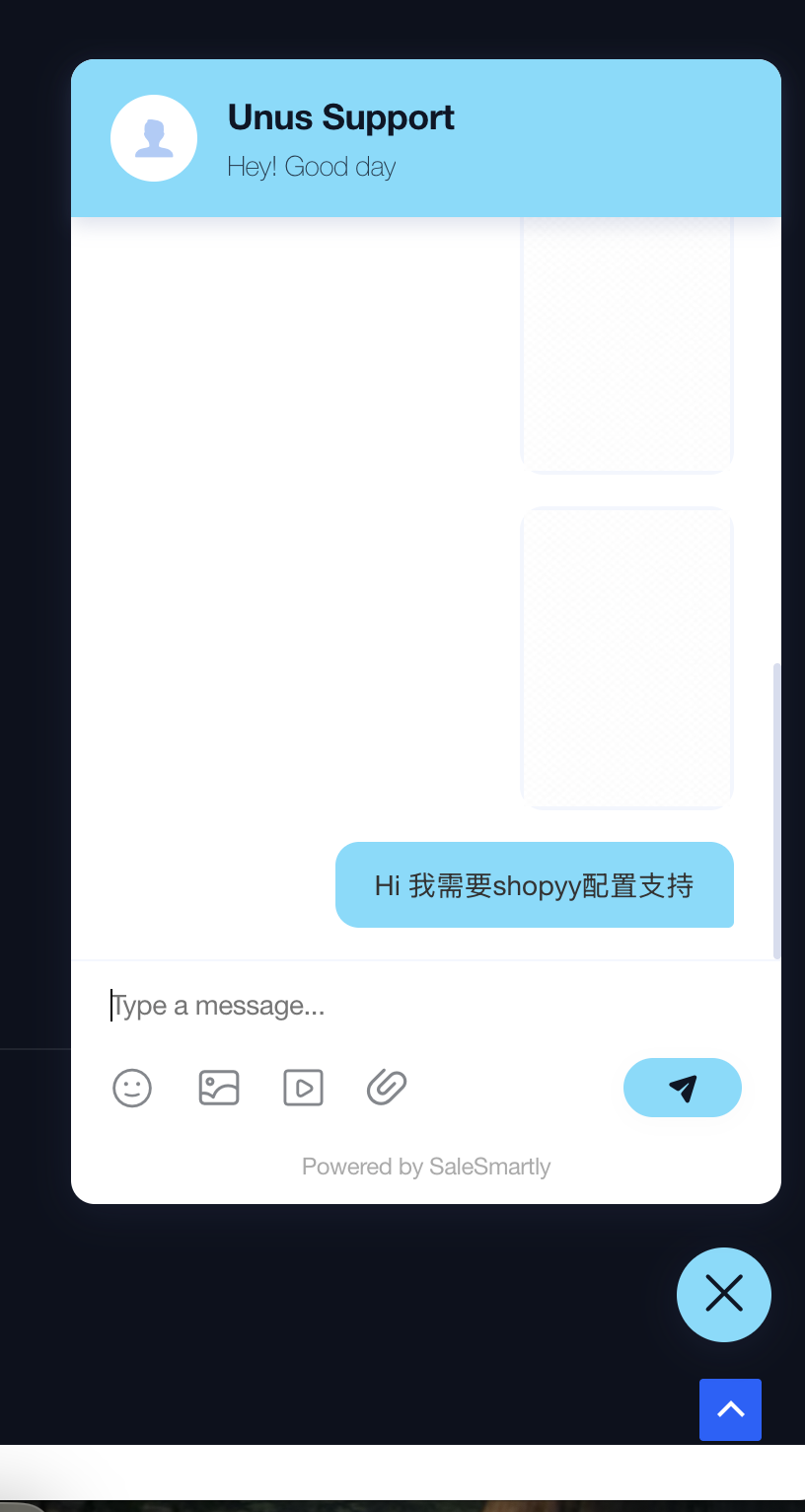
Section titled “Need Help?”Visit https://unuspay.com/ and use the chat widget to reach our support team.
Referral Program
Section titled “Referral Program”Refer customers and earn lifetime commissions. Contact us at https://unuspay.com/ for details.