
WooCommerce Integration Guide
Install the Plugin
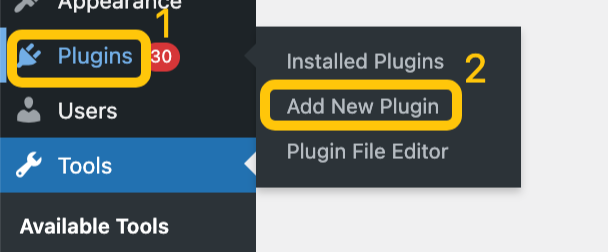
Section titled “Install the Plugin”From the WooCommerce admin panel, navigate to Plugins in the left sidebar and click Add New Plugin.
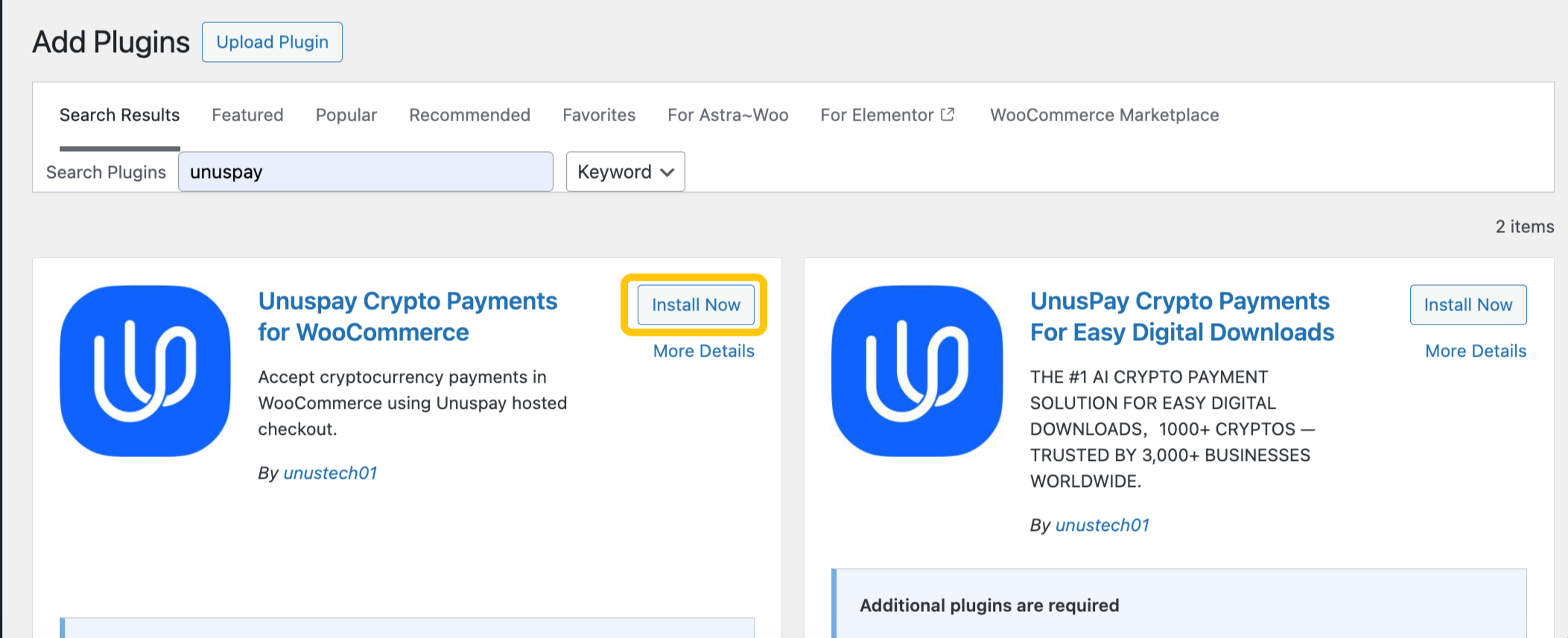
Type Unuspay in the search box to find the plugin.

Select the latest version of the plugin and click Install Now.
Activate and Configure the Plugin
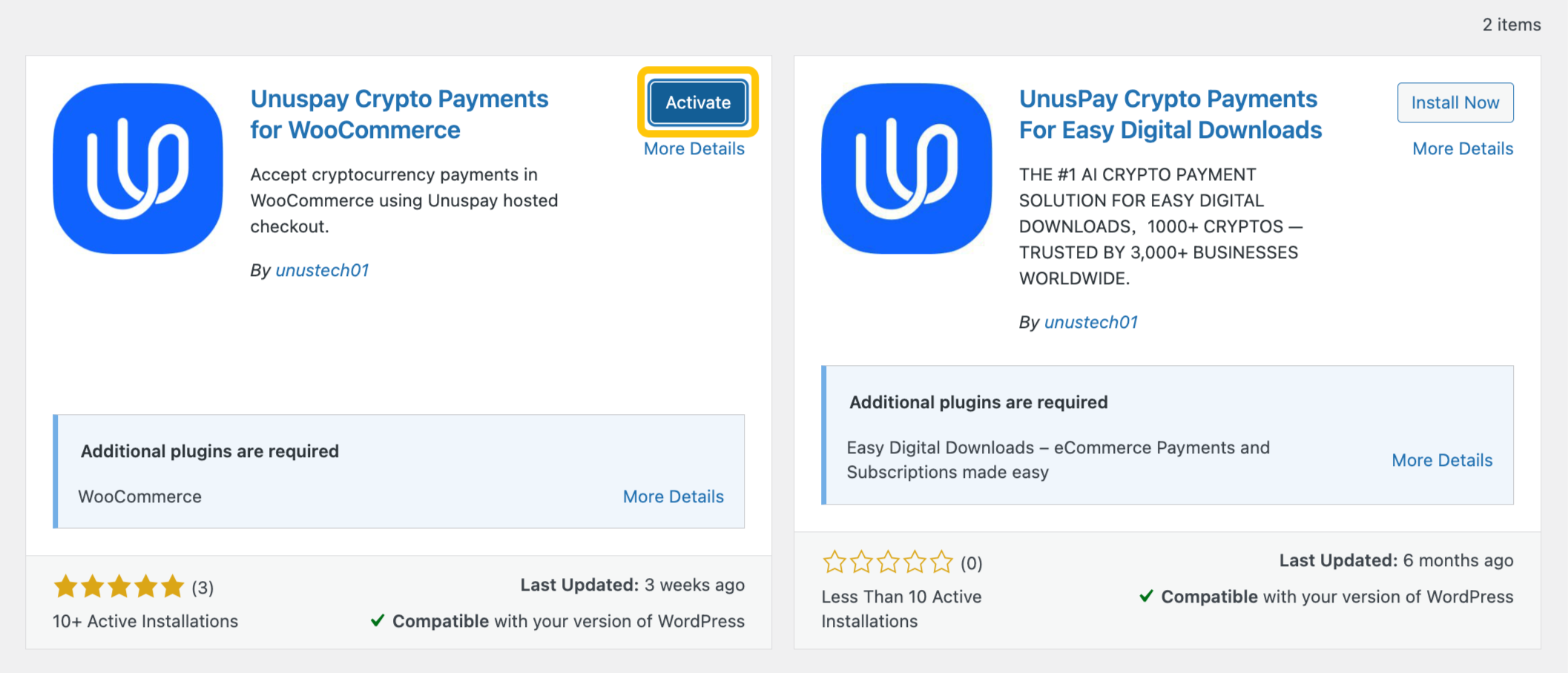
Section titled “Activate and Configure the Plugin”Once downloaded, click Activate to enable the plugin.
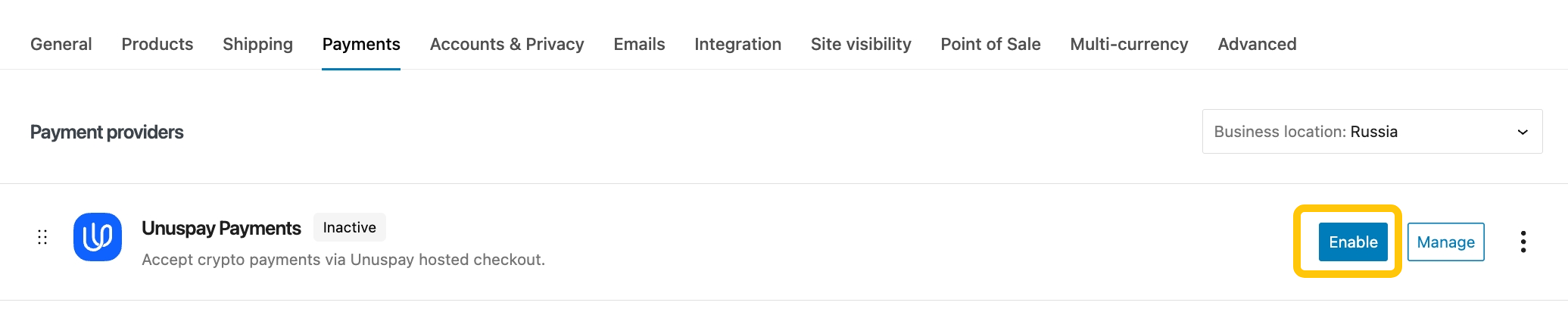
In the left sidebar, click WooCommerce, select Settings, then navigate to the Payments tab.
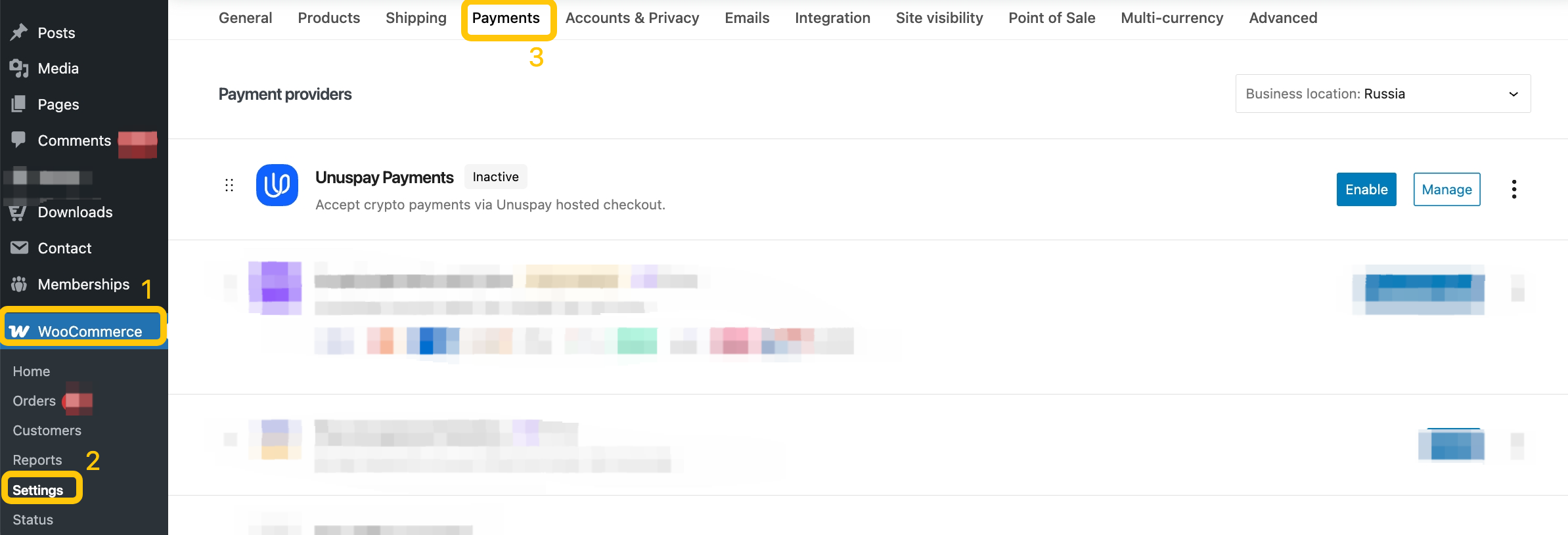
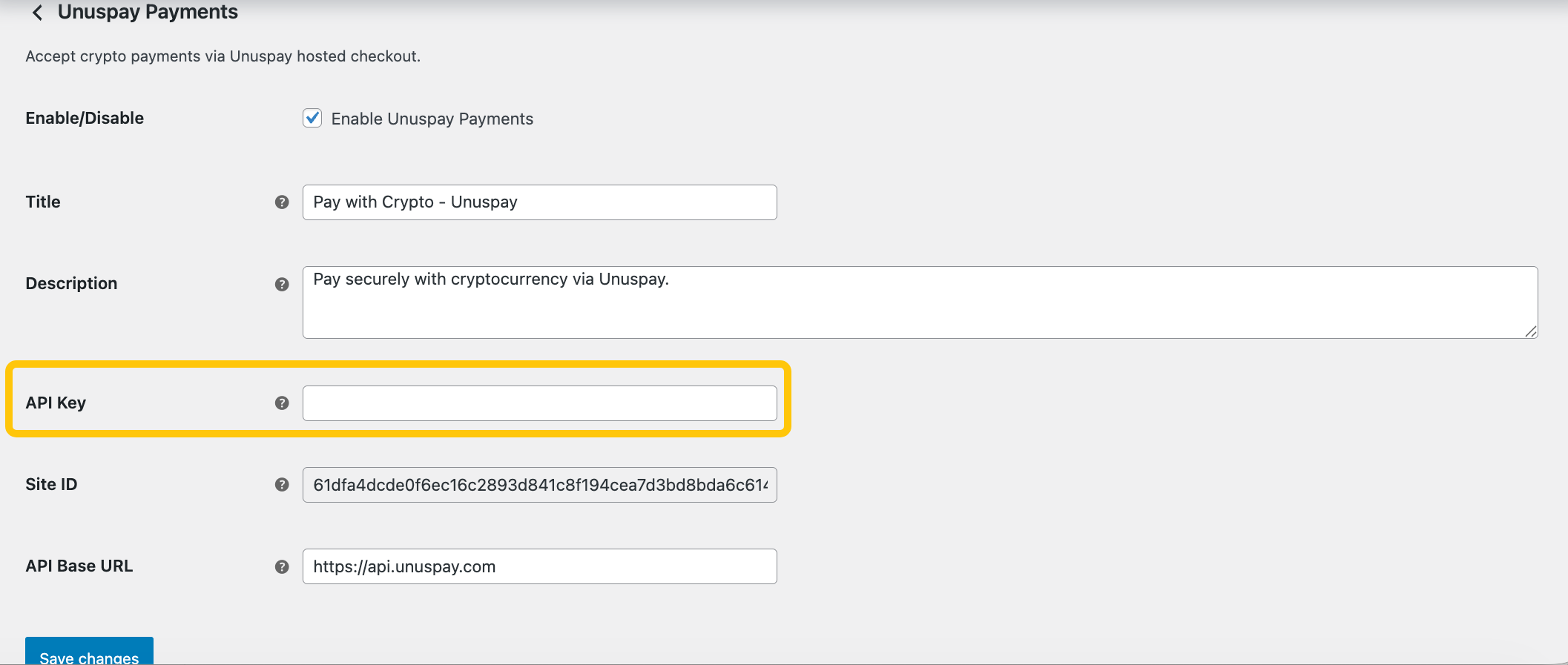
Find Unuspay in the payment methods list. Click Enable to activate it, then click Manage to configure your API keys.

Get Your API Keys
Section titled “Get Your API Keys”You’ll need API keys from Unuspay to complete the configuration. Refer to the User Onboarding Guide for instructions on creating your API keys and setting up wallets.
Need Help?
Section titled “Need Help?”Visit https://unuspay.com/ and use the chat widget to reach our support team.